What the demo proves
The sample illustrates how outpainting can change composition and aspect ratio without a reshoot. Lighting and textures continue past the original border so the new canvas feels like part of the same scene.
Demo · Outpaint
Left is before, right is after. Drag the slider to compare AI image expansion.
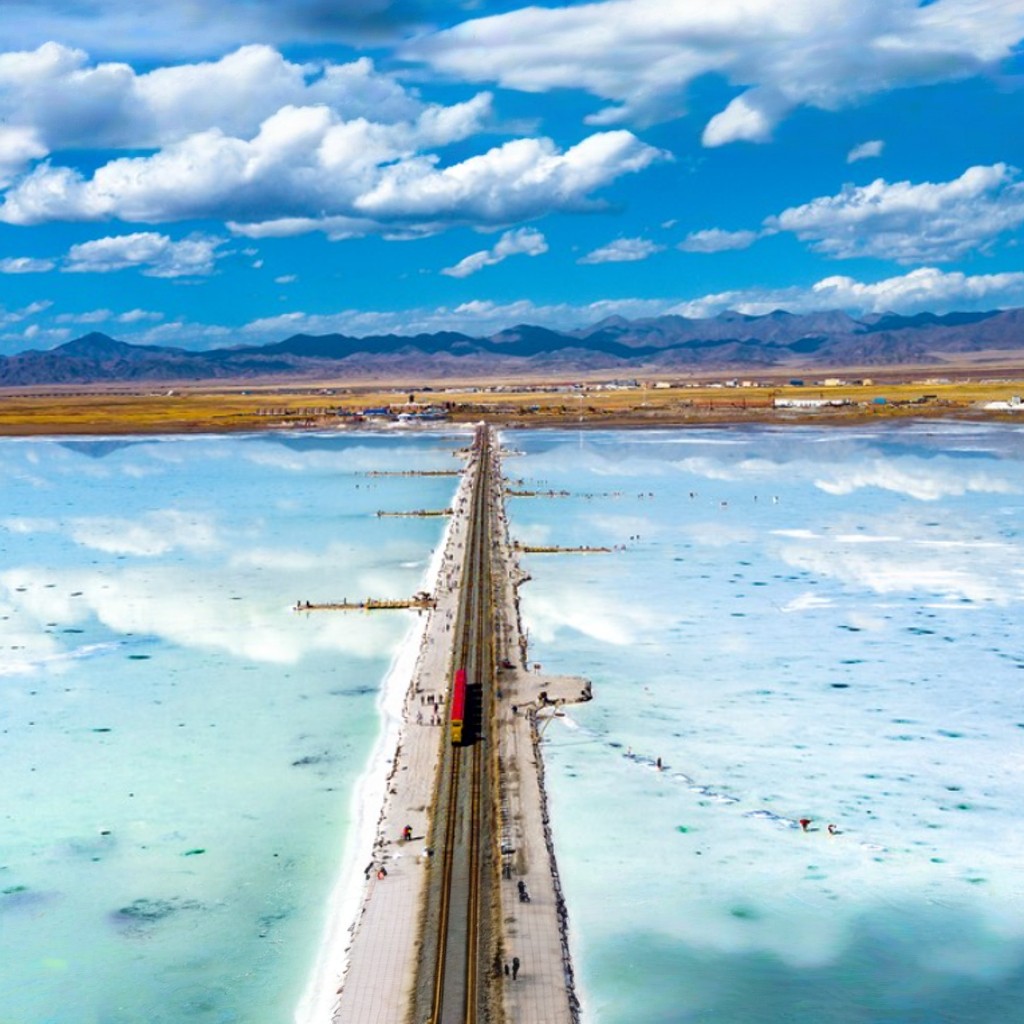
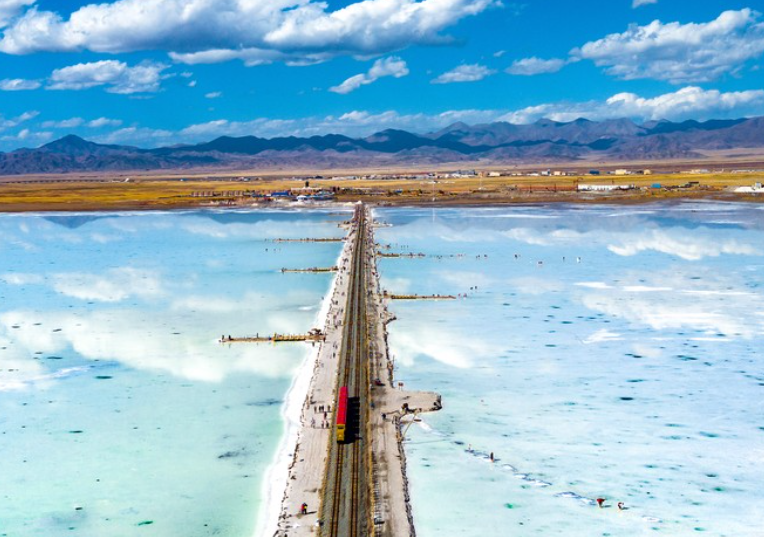
Want to try it yourself? Upload an image and pick a target ratio.
Guide
This page shows a fixed before-and-after example of MP Picture AI Outpaint. Drag the slider to compare the original crop with the expanded result, then try the live tool with your own image.
The sample illustrates how outpainting can change composition and aspect ratio without a reshoot. Lighting and textures continue past the original border so the new canvas feels like part of the same scene.
When you are ready:
Seeing a real expansion helps you judge whether AI outpaint fits posters, thumbnails, or story formats before you invest time masking or colorizing related assets on MP Picture.